Every arcade has a cabinet with a reputation. Players say the buttons are mushy. Nine times out of ten the buttons are fine and the player had a coin in one hand and a hot dog in the other. Phones work the same way. Before you decide a game is sluggish, check what is between your thumb and the glass.
Start with the glass
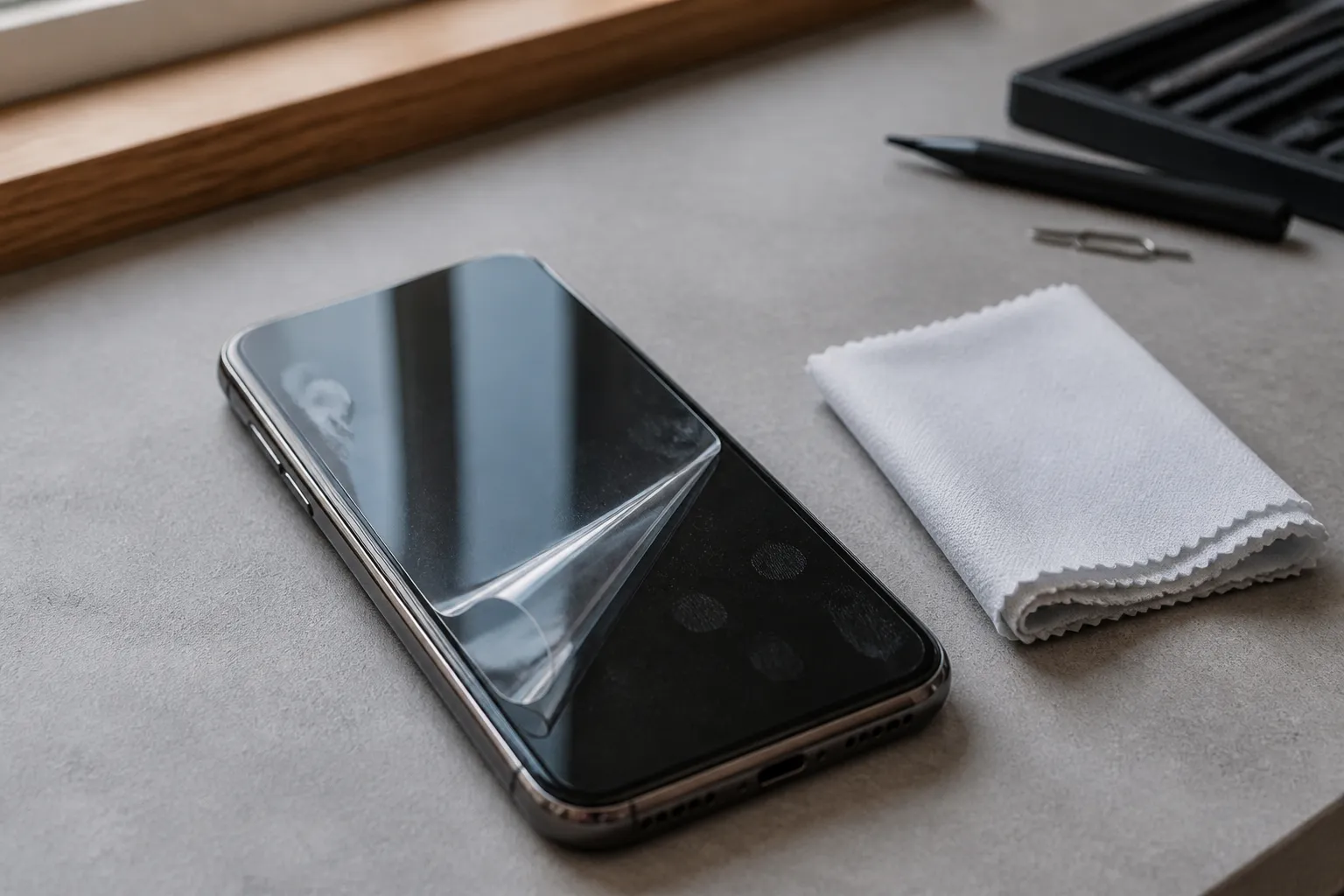
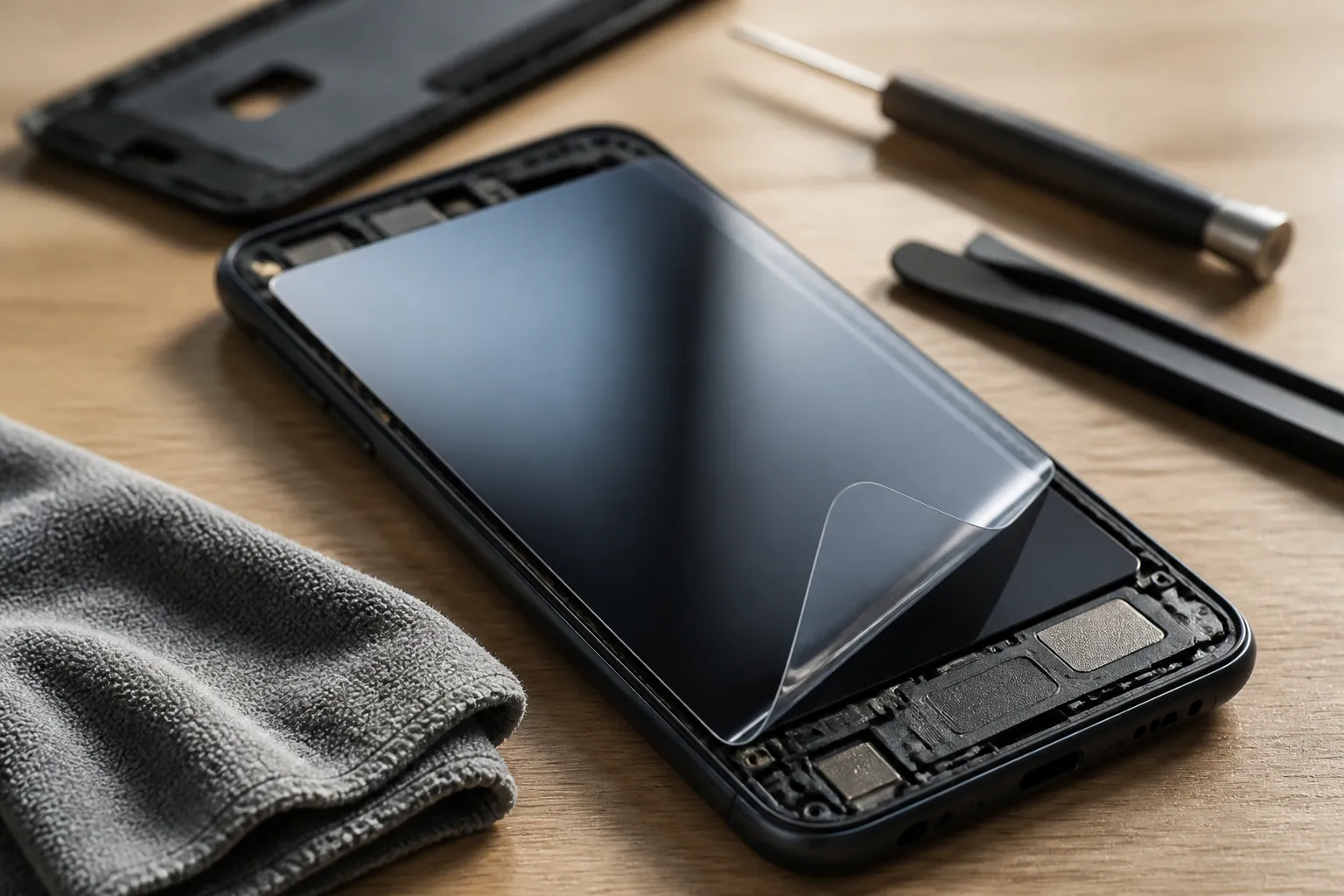
Google's Pixel help puts the screen first, and so should you. Take off the case. Peel off the screen protector. Take off gloves, if it is that kind of winter. Remove any sticker sitting over the screen or the sensors. Then clean the glass.
This is the same drill as wiping a trackball before you blame the board. It is dull, and it is the cheapest test you have. A damaged or badly fitted protector can interfere with touch, and a missed touch feels a lot like lag. Google lists these as steps to try. It does not promise any of them will fix the problem.
Ask whether it is the game or the phone
One question sorts most cases. Does it happen everywhere, or only in one game? Google's help is blunt here. If the touch problem shows up in a single app, contact that app's developer. The phone is probably fine.
If it happens everywhere, work on the phone. On a Pixel, run Touch diagnostics under Display and touch. Check for a system update. Look at Touch sensitivity in the same menu, where Adaptive touch and Screen protector mode can be toggled. Gesture navigation sensitivity is also worth a look, since a swipe from the edge can eat an input meant for the game.
Check the basics under the hood
Google also warns that a Pixel can run into trouble when less than 10% of its storage is free. Clear some space before you tune anything else. The same help page says a phone may restart if it gets too hot. A hot phone mid-session is a fair suspect for stutter, so let it cool. On a Pixel 6a or later, Battery diagnostics is the place to look if the restarts keep coming.
Use safe mode as a witness
If you suspect a downloaded app, Google suggests safe mode. Turn it on and see whether the problem persists. Safe mode switches airplane mode on automatically, so do not be alarmed when the signal bars vanish. If the issue goes away, uninstall recently downloaded apps one at a time. Slow work, but it names the culprit.
If the screen still misbehaves in safe mode, stop blaming apps. Google says to move on to further steps. That points at the screen or the system, not your game library.
On an iPhone, check Game Mode
Apple's Game Mode is the other half of this guide. It prioritizes the game's access to the CPU and GPU and lowers background activity. Apple says that can mean smoother, more consistent frame rates and better responsiveness. It needs iOS 18 or later and a supported game. iPad needs iPadOS 18. Mac needs Apple silicon and macOS Sonoma 14 or later.
It turns on by itself when the game goes full screen and off when you quit. You can toggle it in Control Center through Game Overlay, then Controls, then Game Mode. One catch. If you switch it off by hand, it stays off for that game, even after you quit and reopen. Somebody in your house may have done this once and forgotten. Check.
On a Galaxy, look at Gaming Hub
Samsung phones have their own version. Gaming Hub collects your games and includes settings meant to improve play. Game Booster is a separate tool that works with it, and its menu appears during a game with options for performance and uninterrupted play. Two limits apply. Samsung says you need a Samsung account to use Gaming Hub. It also says Game Booster may not be available for all games, and that screens and settings can vary by carrier, software version and model. If a menu on your phone looks different, that is why.
Wireless accessories are a separate suspect
Apple also says Game Mode doubles the Bluetooth sampling rate. That cuts input latency and audio latency for controllers and AirPods. So if lag only appears with a wireless pad, the fix may sit in Game Mode and not in the game. The game must be full screen for it to engage.
A wired path, where you have one, removes the question. Same logic as swapping a flaky joystick harness for a known good one. You learn something either way.
What nobody has measured here
The sources give no latency figures. Apple does not say how much faster Game Mode feels, and Google does not say how much a cleaned screen helps. They also say nothing about Android phones beyond Pixel and Samsung, or about screen refresh rate and touch sampling. Nothing here explains how to cut lag in a browser game either, which matters if you mostly play in a browser on GamesUnlimited. The glass, storage and heat checks still apply there, since they concern the phone. Treat these steps as a checklist for ruling things out, not a promise of speed.
Run it in order. Clean the glass, test another app, free up storage, update, try safe mode, confirm Game Mode. If the lag survives all that, then go ahead and blame the game. It has earned it.
Sources
- Use Game Mode - Apple Support
- Fix touch & response issues on your Pixel screen - Pixel Phone Help
- Use Game Mode - Apple Support
- Вмешательства в игровом режиме | Android game development | Android Developers
- 帧同步库 | Android game development | Android Developers
- Game Mode API | Android game development | Android Developers
- Fix a Pixel phone that's restarting or crashing - Pixel for Business Customer Help
- Use Gaming Hub and gaming options on your Galaxy device

Marguerite Osei is a house writer for GamesUnlimited covering classic arcade cabinets, pinball, and the hardware that keeps them running. She spent two decades repairing machines in family arcades before she started writing about them. Her reviews weigh how a game plays against how well it holds up to a thousand quarters.