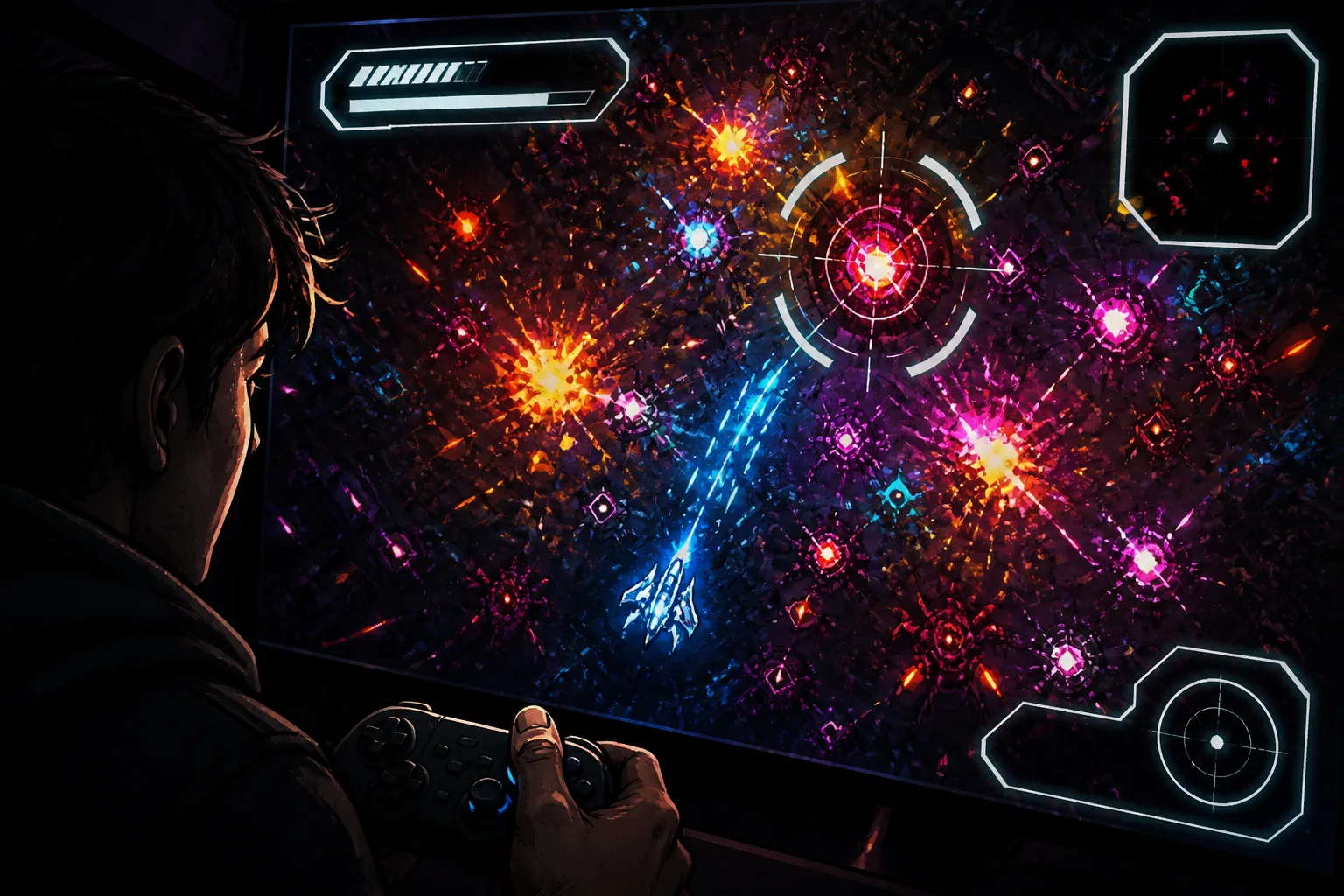
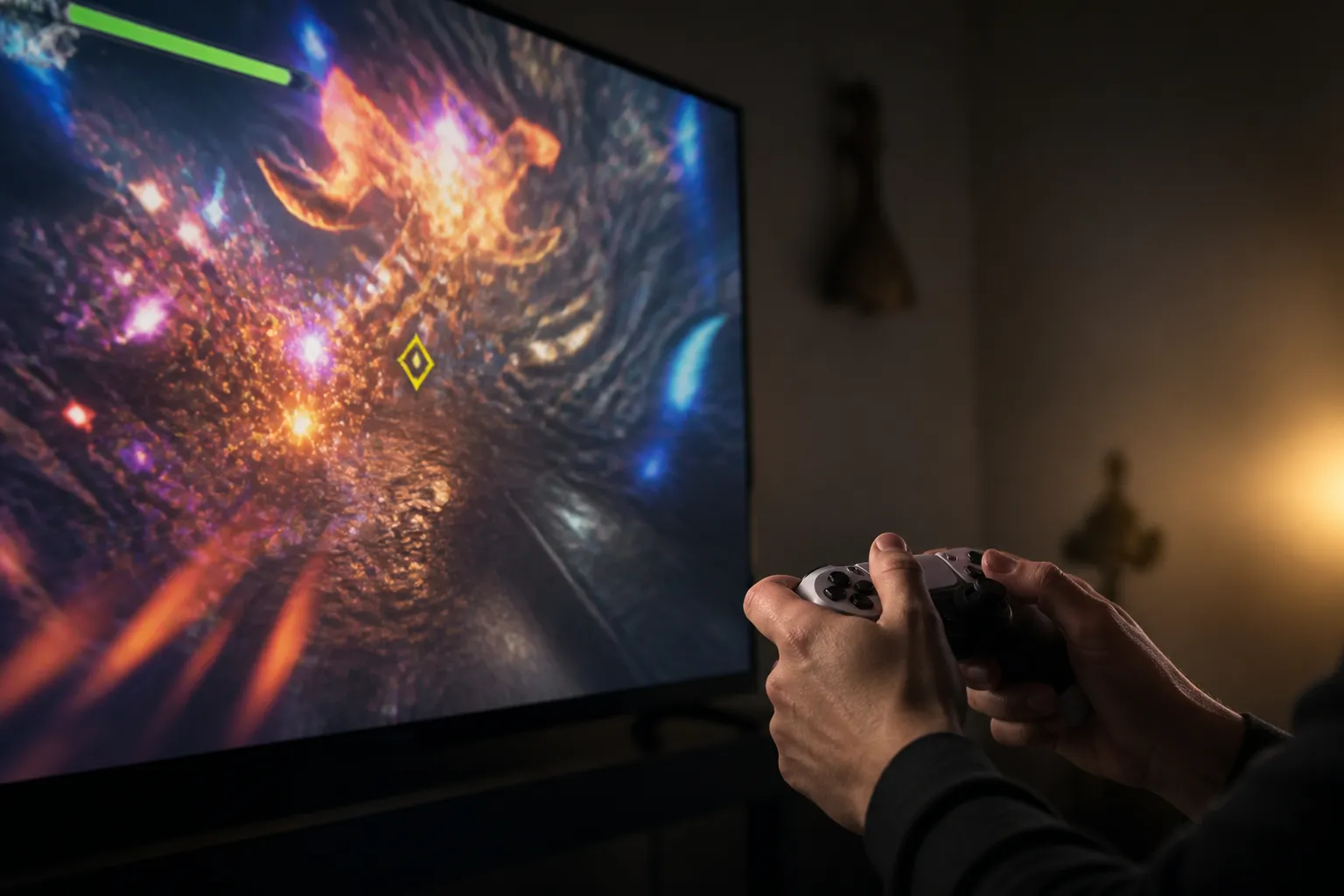
The screen fills, the target marker slips behind an effect, and a player’s thumb stays on the stick while their eyes search for the health meter. A useful review question follows: can someone distinguish the game’s important elements when action gets visually busy? The published Xbox guidance gives a strong way to ask that question. It does not provide a test result for any particular GamesUnlimited or browser arcade title, so this review examines the yardstick rather than claiming a playtest that did not happen.
Contrast is part of the action
Xbox Accessibility Guideline 102 defines contrast as the difference in luminance between a foreground element and its background. More contrast generally makes an element easier to see. The point is practical: a health meter, menu label, map marker, or target cue has to remain distinguishable from whatever sits behind it.
The guideline’s mini-map example makes the stakes clear. If the map has weak contrast, a player may miss an objective, an enemy, or a checkpoint. A gray targeting icon against a dark environment can create the same problem. These are not decorative details. They carry information the player may need at speed, while moving and making decisions.
There is no universal ratio or pass/fail number in this guidance for deciding when a busy screen becomes too busy. A reviewer should not invent one. The better question is whether the important element can be perceived and used in context, including by players with low vision or color vision deficiencies. Microsoft notes that roughly 2.9 billion people in the world have low vision, a reminder that this is a large audience, not a narrow edge case.
Movement can compete with reading
A second part of the screen can be moving even when the player is standing still. Xbox Accessibility Guideline 117 covers scrolling, blinking, auto-updating, and other moving content. It also addresses controls for field of view, camera movement, and sensitivity.
Imagine a pause screen over a shifting scene, or a notification that scrolls away before a player can finish reading. The input may be simple, but the eyes have a second task. The guideline notes that moving or blinking text can be difficult to read in time and can be difficult for screen readers to handle. Background motion can also distract players with attention deficit disorders or cognitive disabilities. Whole-screen bobbing and camera movement may contribute to motion sickness.
One useful design response is an opaque background behind stationary text when movement behind it cannot be avoided. That is a choice the game’s creators must make. A reviewer cannot assume a setting exists just because the guidance recommends the option.
A review starts with a short session log
For a specific game, the first pass should use default settings. Start at a menu. Can the labels be read against the artwork? Begin a round and look at the health display, map, and any text that updates during play. Then watch for a key gameplay cue, such as a target icon against a dark or animated background.
A useful session note records what happened, not just a verdict: “Health meter visible in the opening seconds. During a crowded encounter, the background and meter share similar tones. Had to stop moving to find it.” That observation gives a team something to investigate. “The screen is confusing” does not identify which element disappeared or when.
The next pass checks the available controls. Can the player pause, hide, or remove scrolling, blinking, or auto-updating content? Can they adjust field of view, camera movement, or sensitivity? Is there an option that puts an opaque panel behind text over motion? Write down what is present and what is absent. Do not confuse a setting that changes camera sensitivity with one that stops background animation.
One small dialogue scrap can help make the review concrete. Ask a tester what they are looking for during a busy moment. “Where’s the meter?” points to a search problem. “I can see it, but the number keeps moving” points to a different one. The question is not meant to prove a finding on its own. It helps connect the screen condition to the information the player needs.
What these guidelines can and cannot settle
The Xbox Accessibility Guidelines are best practices for designers, developers, and test teams. Each guideline offers scoping questions, areas to target, and implementation notes. The guidance overview describes them as a resource for checking games, not a legal or compliance checklist.
That distinction matters for any review. A game that offers the listed controls has not automatically proved that every element is clear. A game without a particular option has not, on that fact alone, received a formal accessibility verdict. The guidance helps reviewers ask focused questions and describe what they observe. It does not supply a score for visual busyness or a test protocol that can be applied without judgment.
It also cannot tell us how a particular browser game behaves. The sources do not describe GamesUnlimited titles, browser-specific display issues, mobile play, or the contrast and motion settings available in any one game. Those claims require separate evidence from direct play-testing on the relevant screen and settings. Without that evidence, a title-specific conclusion would be guesswork.
The answer depends on what stays readable
A busy screen can still communicate well if the health meter, menu text, map, and target cues remain easy to pick out when the action changes. It becomes harder to manage when those elements blend into their backgrounds, when text moves away before it can be read, or when the camera keeps moving without an adjustment that helps the player.
For a player deciding what to check, the practical questions are plain: Which element did you need? Could you see it against the scene? Did motion or blinking interrupt reading? Could you change the contrast, pause the moving content, or calm the camera? A review should end with those observations and a question for the next session: when the screen fills again, what will you look for first?
Sources

He is a house writer for GamesUnlimited. He covers co-op campaigns, controller design, and player rituals through reports from launch nights and living rooms.